
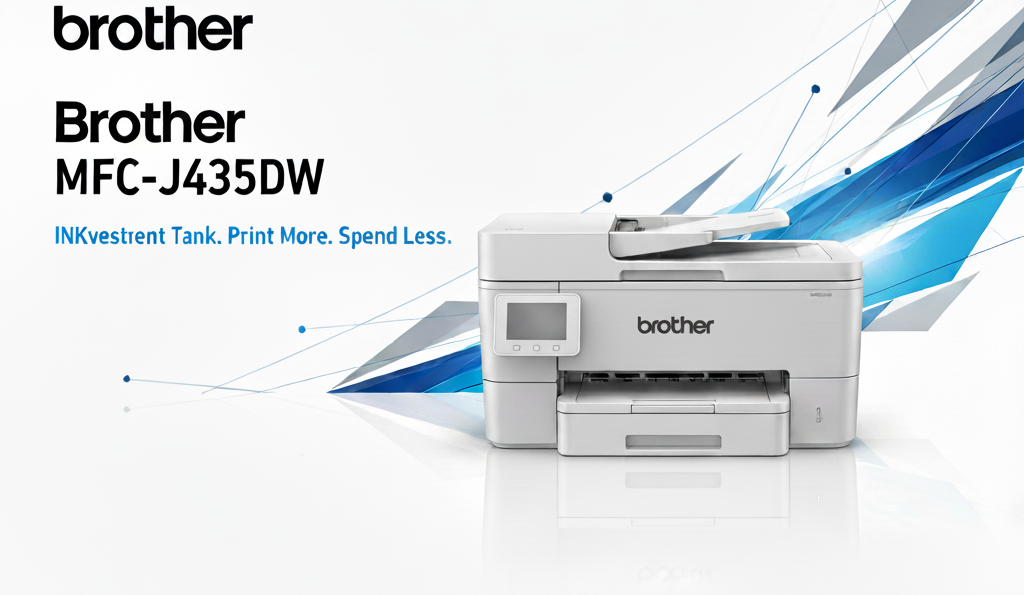
Brother Printer Series
Brother HL Series
Reliable laser printers for business
Brother DCP Series
Compact all-in-one printers
Brother MFC Series
Multi-function center printers
Method 1: Preparing for Brother Printer Installation
What You'll Need:
- Brother model (HL, DCP, MFC)
- Computer with internet
- WiFi SSID and password
- USB cable (optional)
Initial Setup Steps:
- Unbox, remove tapes, connect power and turn on
- Install toner/drum or ink per instructions
- Load paper in the tray
Method 2: Install Brother Printer Driver
Use official Brother software for full feature support.
- Visit support.brother.com
- Search your exact model and OS
- Download the Full Driver & Software Package
Why Official Drivers
- Compatibility, security, maintenance tools
- Scanner/ControlCenter features enabled
Method 3: Windows Installation
- Run installer as Administrator
- Select Wireless or USB connection
- Allow firewall prompts
- Print a test page
Method 4: Mac Installation
- Download macOS package for your Brother model
- Install with admin password
- Add printer via System Settings > Printers & Scanners
Method 5: WiFi Connection (WPS & Manual)
WPS Push Button
- Hold WiFi/WPS on printer until LED flashes
- Press router WPS within 2 minutes
- Wait for solid WiFi light
Manual Setup
- Open Network/Wireless Setup on control panel
- Select SSID, enter password
- Confirm connection and print report
Method 6: Troubleshooting
- Restart printer, router, and computer
- Reinstall drivers; remove old Brother software first
- Update firmware via Brother utilities
- Try static IP or USB if detection fails